
 MX Deck
Your maintenance workspace · Android + iOS
Your workflow.
Now on iPhone.
Keep the timing. Keep the details. MX Deck brings countdowns, local and Zulu clocks, parts references, and trip planning together in a focused native app for Android and iPhone.
- Native on both platforms
- Offline at its core
- No app account · No ads
Android: approved tester access.
iPhone: running on real hardware, with device testing underway.
One product. Two native apps.
Familiar by design.
Built toward 1:1 parity.
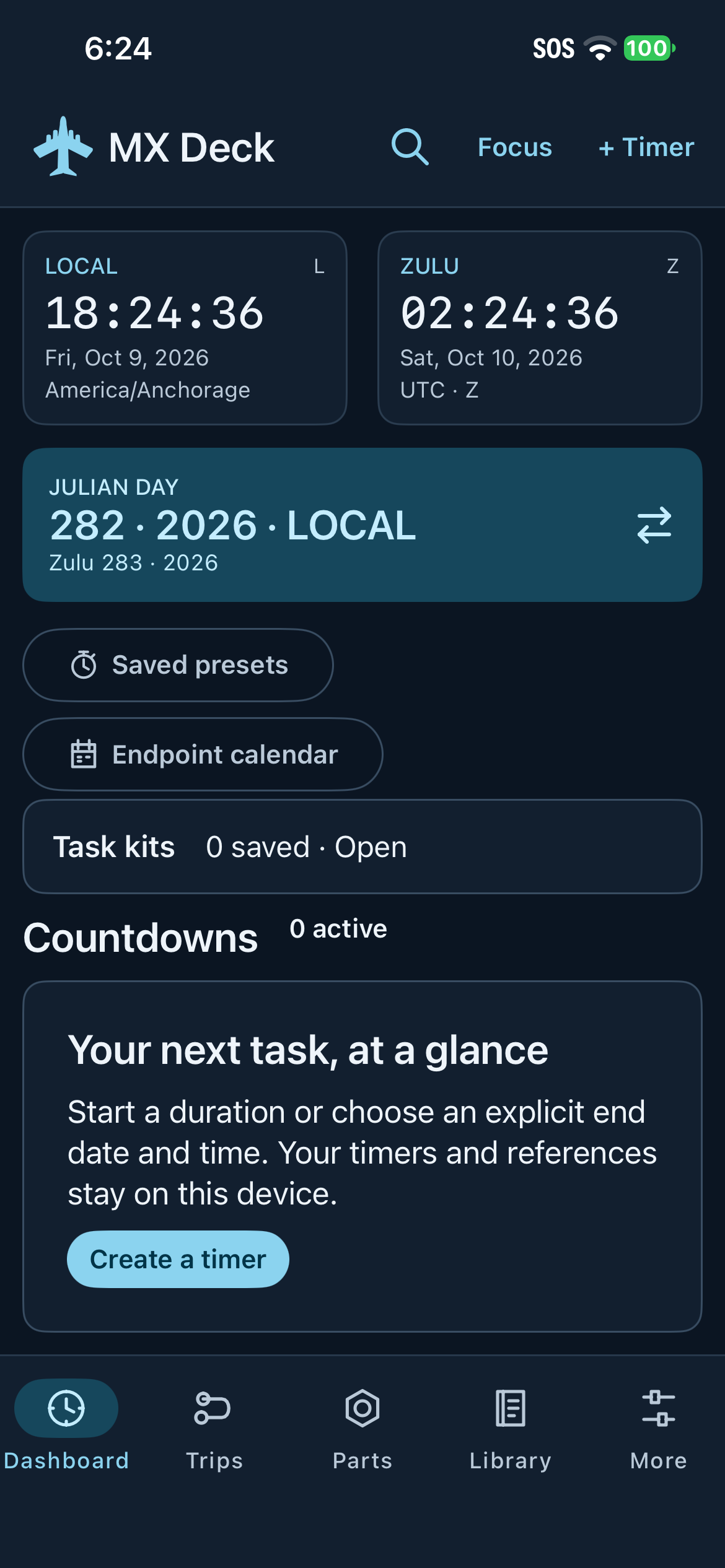
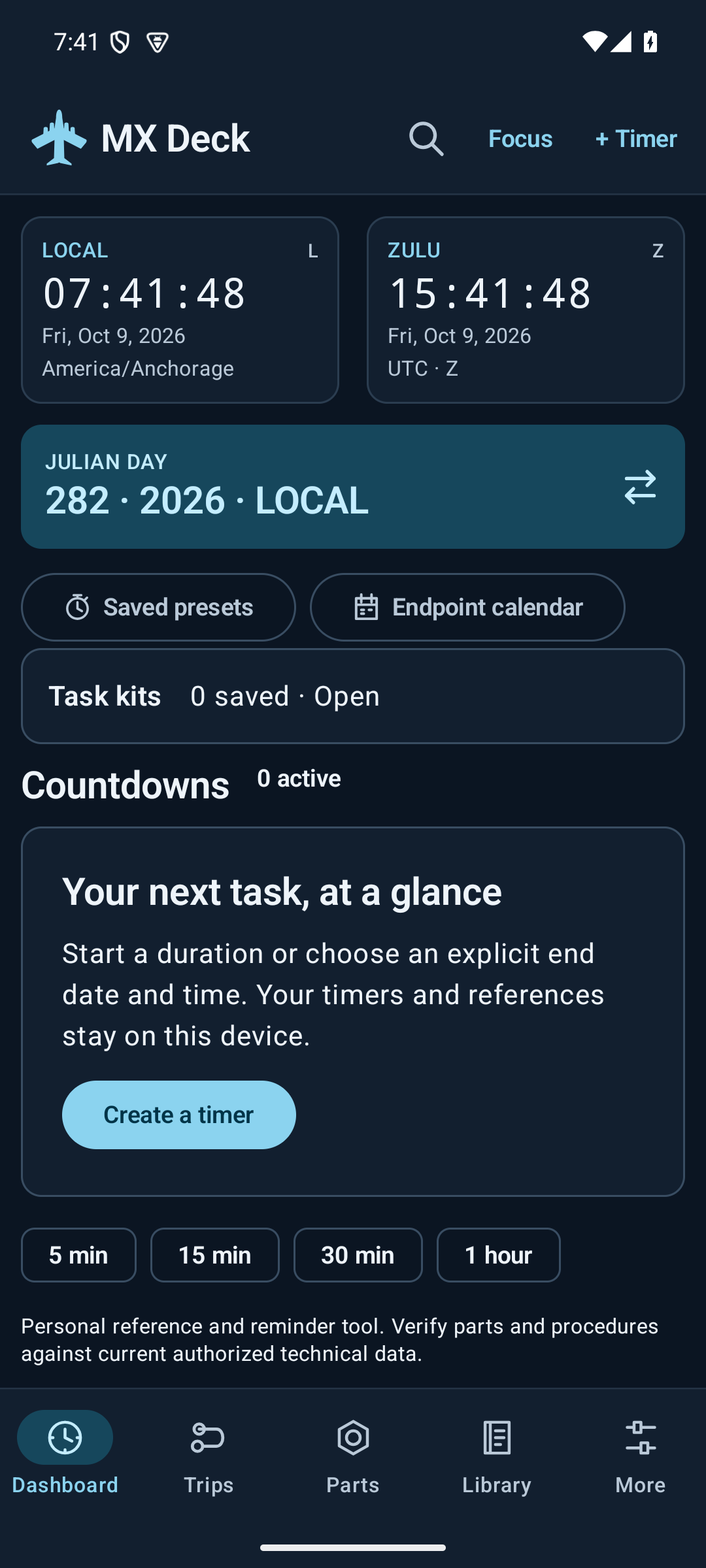
The iPhone app carries MX Deck’s recognizable Dashboard, Trips, Parts, Library, and More layout into a native iOS experience. The same core tools and data rules guide both versions, so the workflow feels familiar whichever phone you reach for.
The tools you know
Clocks, countdowns, Focus, references, trip planning, and task kits share the same purpose and organization across both apps.
Made for each platform
A native Android app and a native iPhone app, with controls and system integrations built for the phone in your hand.
Your information stays yours
Keep your working records on your device. Choose when to share or back up, and when to connect to an online catalog.
The iPhone app is installed and running on a physical iPhone. Full 1:1 validation is still in progress, including interface journeys and platform-specific alarms, widgets, and purchases. See current access options.
One place for the things you reach for
Less switching. More doing.
Timers with context
Set a duration or a specific endpoint. Name and color your timers, reuse presets, pause, resume, snooze, and review their event history. Focus mode brings the countdowns forward.
Parts at hand
Search DLA PUB LOG on your device after downloading its catalog. Keep identifiers and personal notes in your Library, with a clear distinction between your records and source data.
Your reference library
Keep saved parts, reference pointers, notes, and accomplishments together. Add selected photos or documents, record your own job durations, and find local records with search.
Trips and task kits
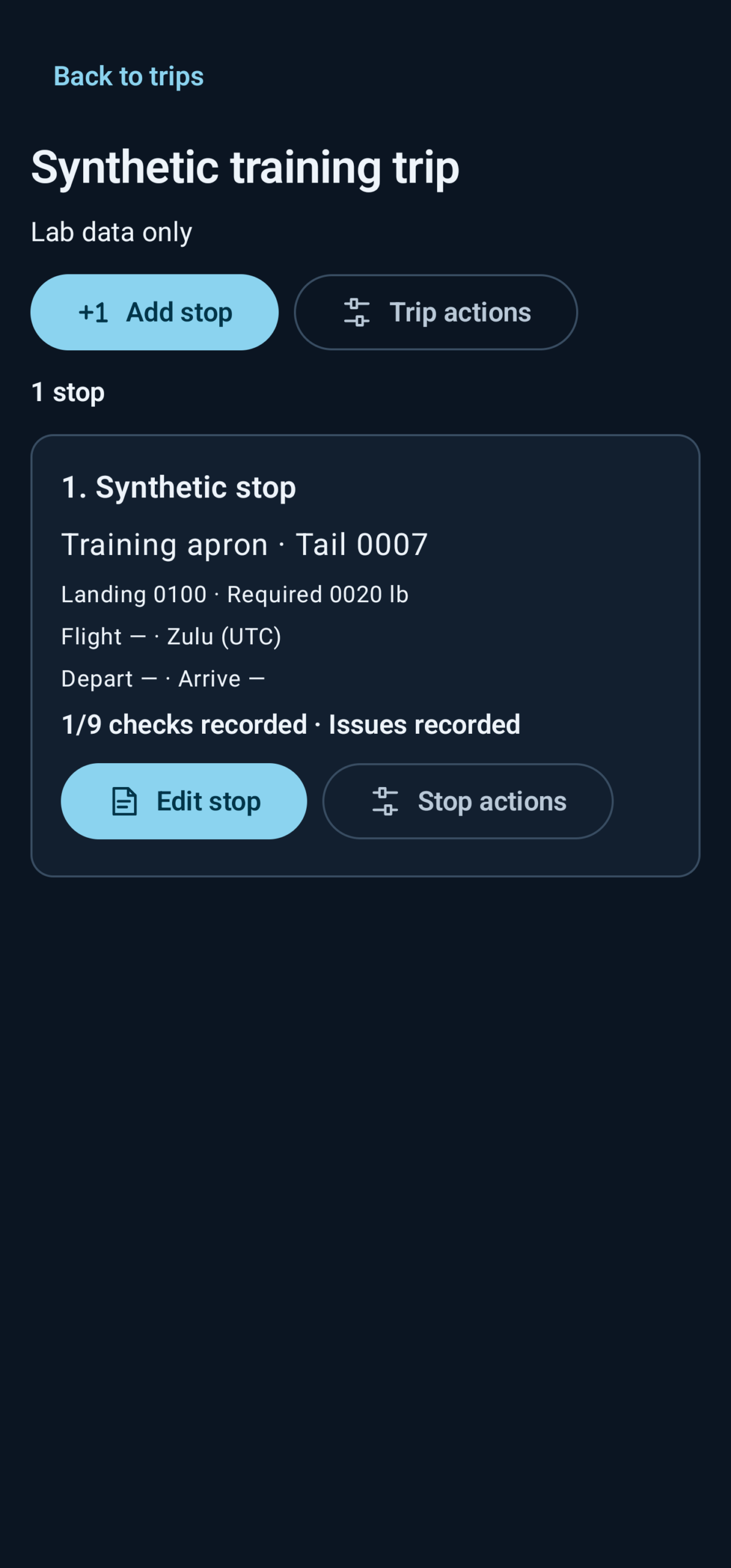
Organize trips with editable stops, flight details, checklists, and notes. Save reusable task kits to bring related references and timer templates together.
Time and conversions
Read local time, Zulu time, and Julian day together. Convert dates and quantities. Choose standard, seven-segment, or flip-board timer displays and a light or dark theme.
Back up what matters
Choose which categories to export, make an encrypted backup, and review conflicts when merging a restore. Share an individual record only when you choose to.
Real screens. Real progress.
Two platforms. Recognizably MX Deck.
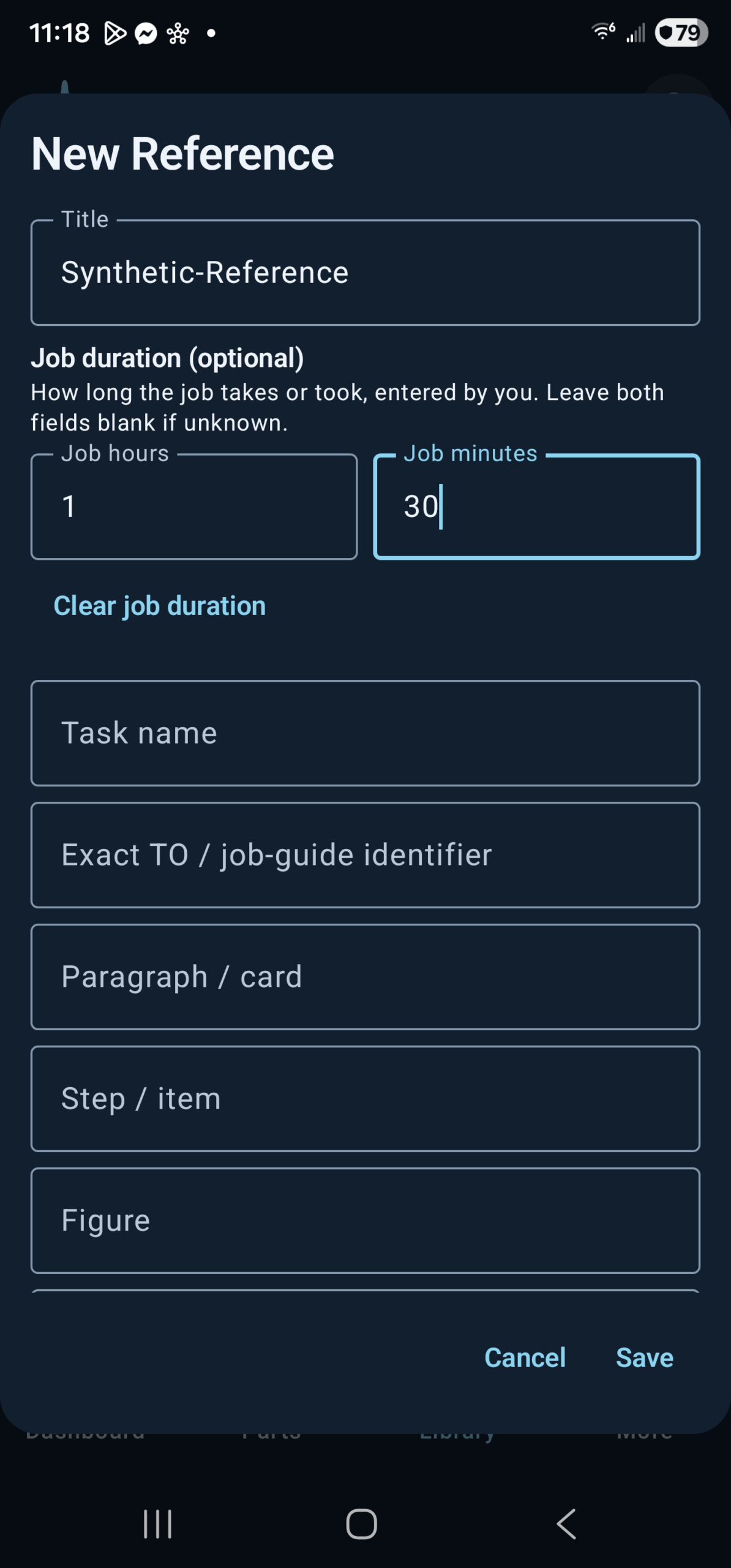
Compare the current iPhone and Android dashboards, then explore the Android workflow examples below. Tap any image for the full view. Demonstration records are synthetic.
Start here
Your first few minutes with MX Deck.
Check your clocks and alert setup
Open Dashboard for local time, Zulu time, and Julian day. Review your phone’s notification and alarm permissions when prompted. Android and iOS handle alert delivery differently. Use the app’s sound test and a short practice timer to check your chosen alert route on your own phone.
Create a countdown
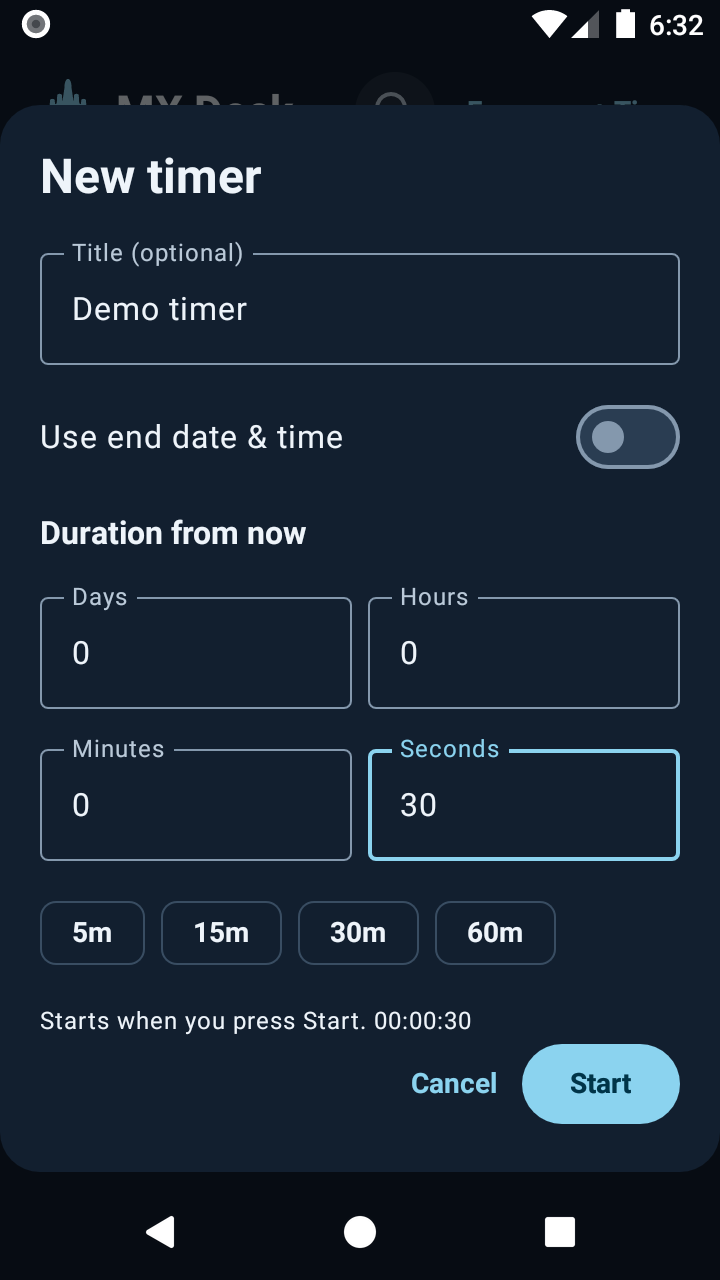
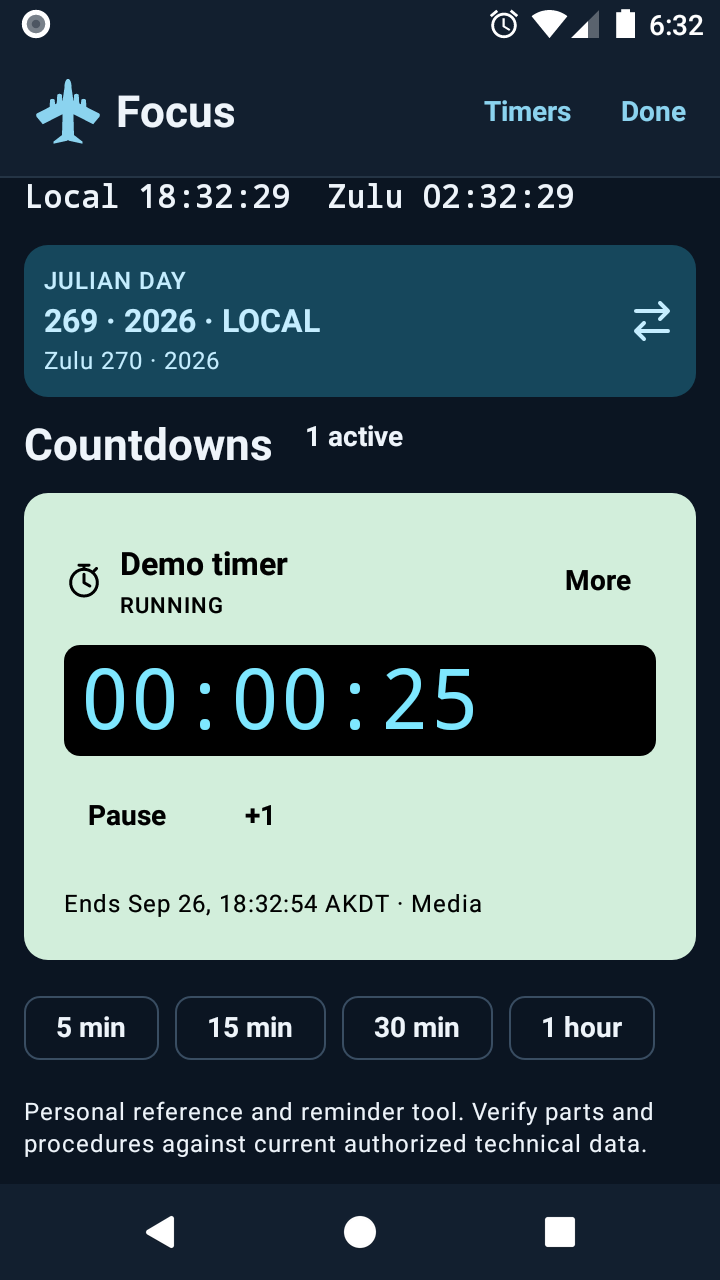
Tap + Timer, enter a title, and choose a duration or endpoint. Check the date and time zone for endpoints, pick the alert options, and start. Use the timer’s controls to pause, resume, add time, snooze, or dismiss. Open Focus for a simpler timer view.
Keep the reference, not just the memory
Open Library and choose Saved parts, References, Notes, or Accomplishments. Add a record, select only the attachments you need, and save. A reference points to your approved technical material; MX Deck does not generate maintenance procedures.
Prepare a trip or a repeatable task
Open Trips, create a trip, and add stops. Enter the details and checklist observations you want to retain. On Dashboard, open Task kits to group related references and timer templates for reuse.
Make a backup you control
Use the app’s backup/export controls, select the categories, and choose a destination through your phone’s file picker. Use encryption for sensitive records and keep the password somewhere safe. When restoring, review the preview and conflict choices before merging.
Know your source
Offline first. Online when you choose.
DLA PUB LOG
The default source is the official downloadable DLA catalog. In Parts → Sources, choose the download/import action and review its storage and network requirements. Allow ample free space and follow the requirements shown in your app; a full catalog and its searchable index are large.
The first download and indexing can take time. Follow the in-app progress and keep the app available as directed; the transfer can be cancelled. Once the catalog is ready, searches run locally without sending your query to DLA. A refresh keeps the current edition available until its replacement validates.
LogiQuest Lite
LogiQuest Lite is a separate, optional online source. Use it only when you are authorized to access it, then record that statement in the app. The checkbox records your attestation; it does not grant access rights.
Queries are sent to that provider over the internet when you submit them. You can revoke the app’s authorization state in Sources. Buying Pro does not grant provider authorization, and the app does not silently switch catalog sources.
Catalog editions can age and source fields may be missing. Check the source label, edition, and current authorized technical data. MX Deck does not guarantee compatibility, stock availability, or maintenance suitability, and is not affiliated with or endorsed by DLA or the U.S. government.
Choose the capacity you need
Useful free. More room with Pro.
On Android, both tiers include duration and endpoint timers, Focus, Trips, local/Zulu clocks, Julian conversion, supported catalog searches, and encrypted backup/restore. Pro is an optional one-time Google Play purchase; the app shows your region’s current price before purchase. iPhone purchase availability will be confirmed with its public release.
| Feature | Free | Pro |
|---|---|---|
| Active timers / custom presets | 3 / 3 | No commercial count cap |
| Saved parts / references | 30 / 20 | No commercial count cap |
| Notes / accomplishments | 30 / 50 | No commercial count cap |
| Task kits / images per saved part | 2 / 1 | No kit count cap / 8 images |
| New search history entries | 50 | Adjustable retention |
| Additional tools | Core tools and basic widgets | Recurring timers, endpoint calendar, additional widgets, custom palette, bulk CSV import, saved filter views, and range reports |
Practical device, storage, and provider limits still apply. Pro removes app count limits where stated; it does not provide unlimited storage or third-party service rights.
Choose your phone
Get closer to your next workflow.
Get MX Deck on Google Play
Ask Sunimod to add the Google account you use in the Play Store. Open the enrollment page with that same account, become a tester if prompted, and follow its download link.
Enrollment is a one-time step. Future releases arrive through normal Play Store updates while you remain eligible.
Android 8.0 or later. If Play shows “not found,” check enrollment and the selected account. This is approved testing access, not a public production release.
Meet the native iOS app
MX Deck is now built for iPhone and running on real hardware. We’re refining the experience alongside Android, with 1:1 feature parity as the goal.
Public iPhone access has not launched yet. Contact Sunimod for the latest iOS availability and testing information.
The screenshots show a development build on a physical iPhone. An App Store release and public download link will be announced separately.
A few useful answers
Setup and everyday use.
Does MX Deck support iPhone as well as Android?
Yes. MX Deck has native Android and iPhone implementations. The iPhone app is installed and running on real hardware, with the same recognizable core screens and 1:1 feature parity guiding development. Full device validation is still underway. Android has approved Google Play tester access; public iPhone availability has not launched.
Will my records automatically sync between phones?
Your records are local to each device. MX Deck does not automatically sync them through an app account. Sharing, export, and backup are actions you choose; retain a safe backup before moving records between devices.
What works without an internet connection?
Timers, clocks, local Library records, Trips, and an already imported DLA catalog work on your device. The first catalog download, LogiQuest searches, store purchases, and app updates need a connection. Provider links open their own online services.
What should I check if an alert is quiet or late?
Check MX Deck’s alert settings and sound test, your phone’s notification and alarm permissions, volume, connected Bluetooth devices, and Do Not Disturb or Focus settings. On Android, also review exact-alarm access and battery restrictions; on iPhone, check the permissions and delivery route offered by your iOS version. Run a short test under the conditions you plan to use. Force-stopping an app and device restrictions can affect scheduled alerts; do not rely on this app as the sole safety-critical timer.
Does a part bookmark copy a provider’s full record?
No. A Library bookmark keeps identifiers and a source reference. Personal notes and attachments are your own local information. Open the source record again when you need current catalog details and verify them against your authorized technical material.
Can MX Deck scan a part or read a photo?
No. You can type, paste, or share text into supported fields and attach a photo you select. The app does not use the camera or analyze photos to recognize identifiers.
Where is my information stored?
Your Library, timers, Trips, settings, and selected attachments live in the app’s local storage. Sharing and backup happen when you choose them. Catalog and platform services process their own network requests when you use them. Read the MX Deck privacy section for details and deletion options.
How do I restore Pro on Android?
Use the same Google account that made the purchase and choose Restore purchases in the app’s Pro screen. Google Play manages the transaction. Clearing local app data does not cancel or refund a purchase.
See the workflow
Android workflow walkthroughs.
These silent recordings show an earlier Android build (0.1.1). They illustrate the workflow; current screens may differ. The catalog clips show separate stages of a longer download and import, not the entire transfer.
A timer in the background
Create a 30-second timer, open Focus, leave the app, and dismiss the due notification. Recorded on an Android 8.0 emulator. The clip is silent and does not demonstrate audible volume.
Open timer videoStart an offline catalog
Review the network and free-space requirements, confirm the download, and follow its progress. Recorded on an Android 16 phone using the Google Play build.
Open download videoBuild the local index
After the archives arrive, MX Deck prepares the searchable catalog on your phone. Progress remains visible and the operation can be cancelled. This is a clip of that indexing stage.
Open import video